One Life, Many Calendars
How to connect all your Google accounts to Busy Family — and make sure your assistant can see everything.
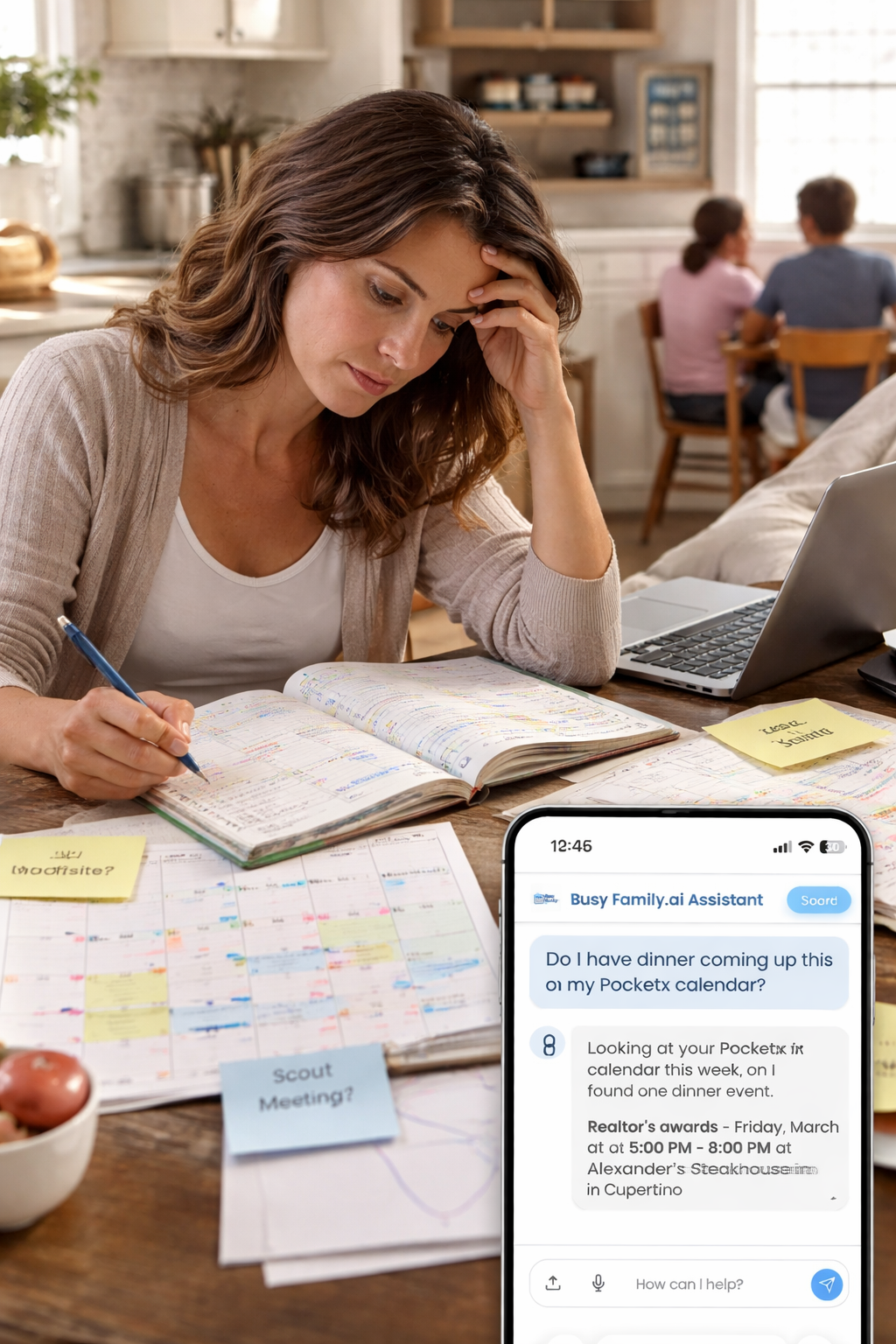
You know the drill. Your work calendar lives on your Google work account. Your personal life — the kids' school events, the dentist appointment, date night — lives on your personal Google account. Maybe your partner has their own Google account too, with their own schedule running in parallel.
On paper, it's all organized. In practice, it means you're constantly context-switching between accounts just to get a full picture of the week. You check one calendar, then open another tab or another app to check the other. Something almost always falls through the gap. The overlap you didn't catch. The conflict you didn't see until it was too late.
That's not a you problem. That's just how calendars got built — one account at a time, in a world where most people only had one Google account.
Life Isn't One Google Account
When we built Busy Family, we made a conscious decision: your assistant should reflect your whole life, not just the slice that happens to live in the Google account you signed up with.
Families are complicated. Schedules don't respect account boundaries. Your kid's soccer carpool is on your personal account; your work offsite is on your work account; your partner's calendar, which you need to actually coordinate dinner around, is on theirs. We know that. We built for it.
That's why we added the ability to connect additional Google Calendar accounts to Busy Family. One place. All your calendars. One assistant that can see the full picture.
How to Add a Google Calendar Account from the Dashboard
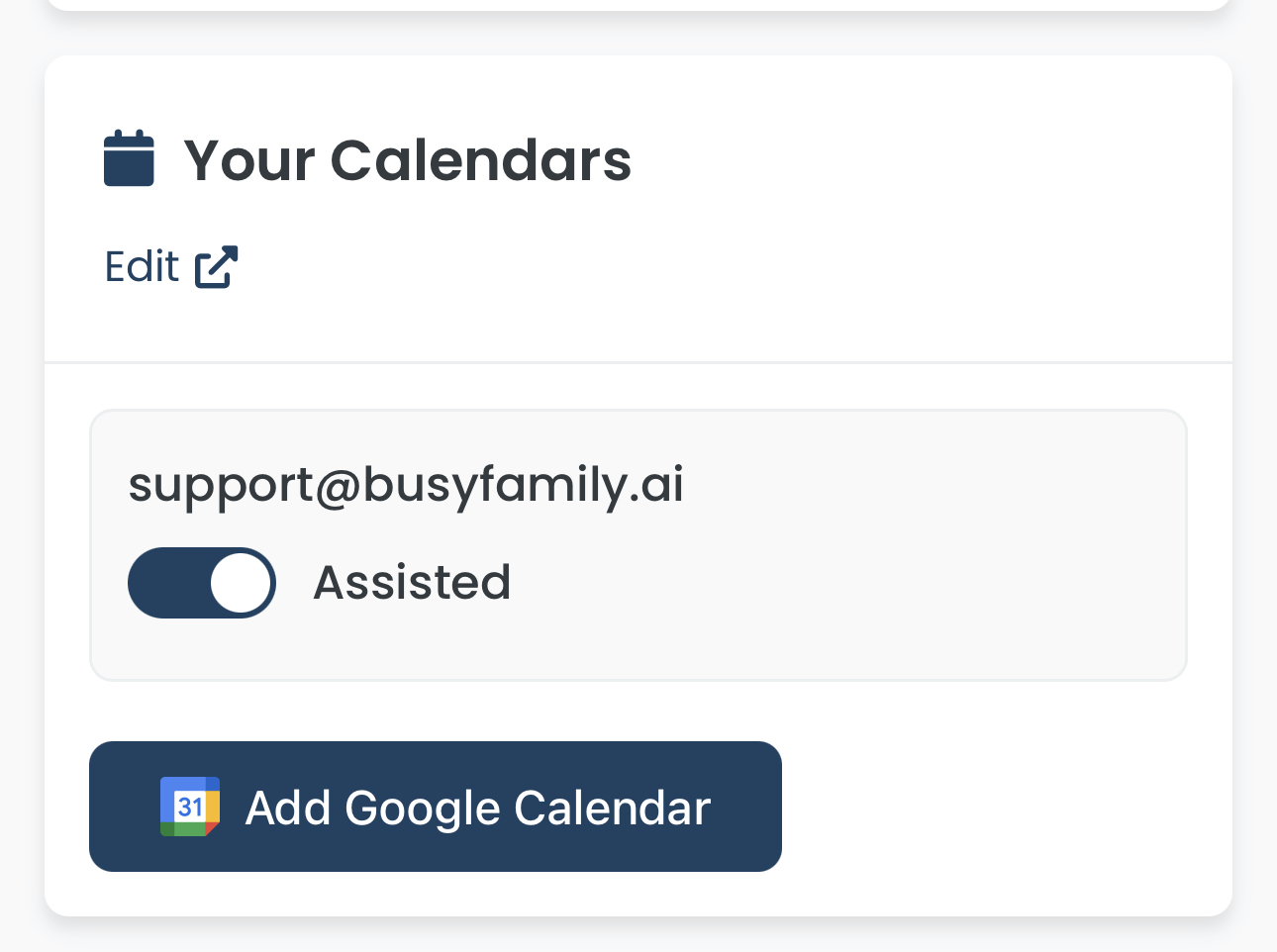
The fastest way to connect a new calendar account is directly from your Dashboard. If you're already looking at your schedule, you don't have to go hunting through settings.
- Open the Dashboard in Busy Family.
- Locate the Calendar Connections section. You'll see the Google account you connected during onboarding listed there.
- Tap Add Account.
- You'll be taken through a standard Google sign-in and permission flow — the same process you used when you first set up Busy Family. Select the Google account you want to add.
- Once you've completed the flow, you'll return to the Dashboard and the new account will appear in your Calendar Connections list.
You can add as many Google accounts as you need. If your family runs on three different Google accounts, connect all three
How to Add a Google Calendar Account from Settings
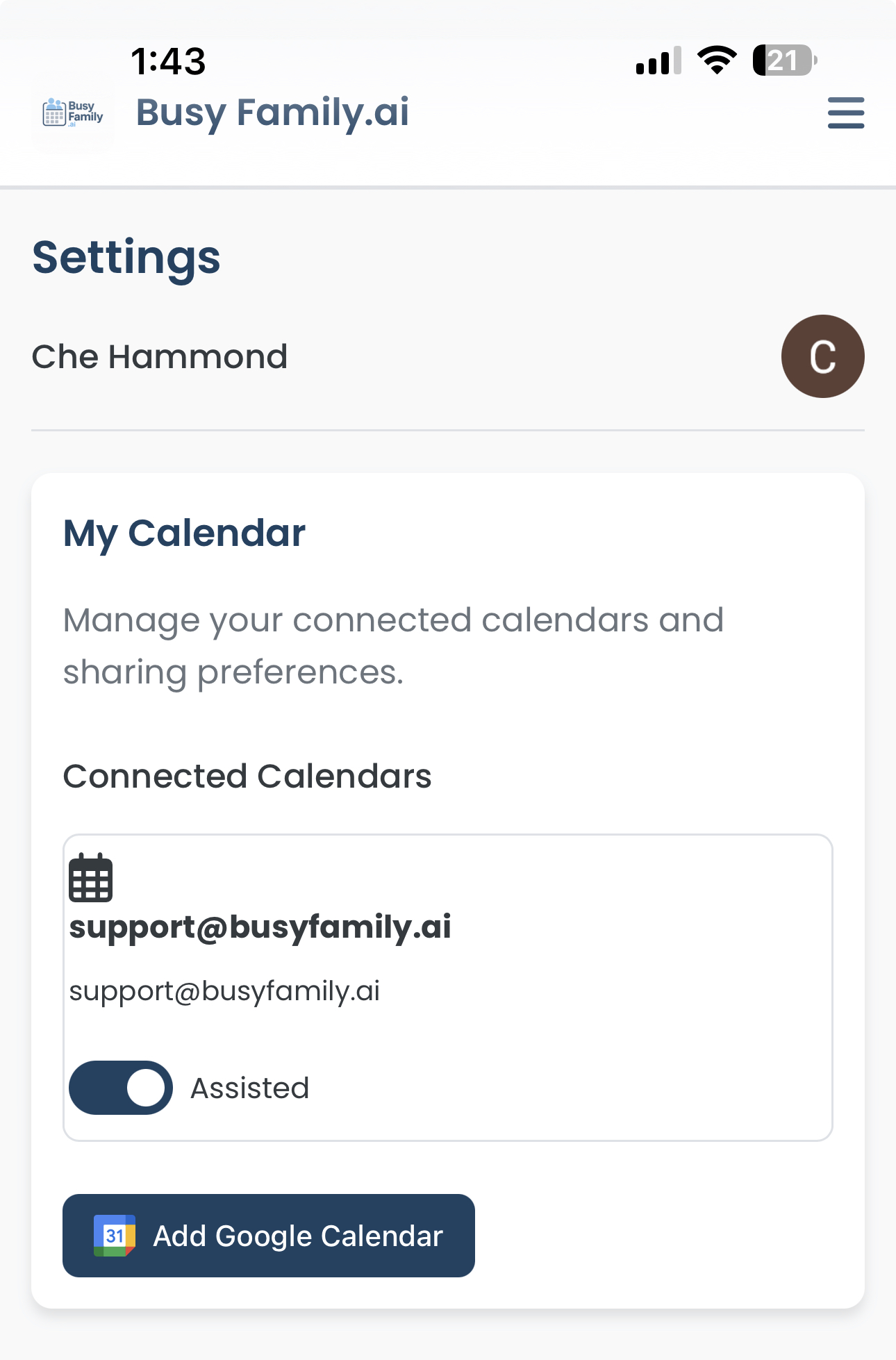
If you prefer to manage your connected accounts in one dedicated place, you can do it all from Settings.
- Open the Settings menu in Busy Family (tap your profile or the settings icon).
- Navigate to Calendar Connections.
- Tap Add Account.
- Complete the Google sign-in and permission flow for the account you want to add.
- The new account will appear alongside your existing connected accounts.
Both paths — Dashboard and Settings — get you to the same place. Use whichever fits your flow.
One More Step: Turn On "Assisted" for Each Calendar
Here's something easy to miss, and it matters.
When you connect a new Google account, Busy Family can see the calendars associated with that account. But seeing a calendar and actively assisting with it are two different things. For your assistant to answer questions, spot conflicts, and help you plan around a calendar, that calendar needs to have the Assisted toggle turned on.
After you've connected a new account:
- Go to Calendar Connections (from the Dashboard or Settings).
- Find the newly added account and expand its calendar list.
- For each calendar you want your assistant to use, toggle Assisted to on.
You don't have to enable every calendar under an account. If you connected your work Google account but only want the assistant to see your main work calendar — not the shared team calendar or the birthday reminders calendar — just toggle on the ones that matter.
If you ever ask your assistant about something and get an incomplete or unexpected answer, check here first. A calendar that isn't toggled on is a calendar your assistant can't see.
Ask About Any Calendar, by Name
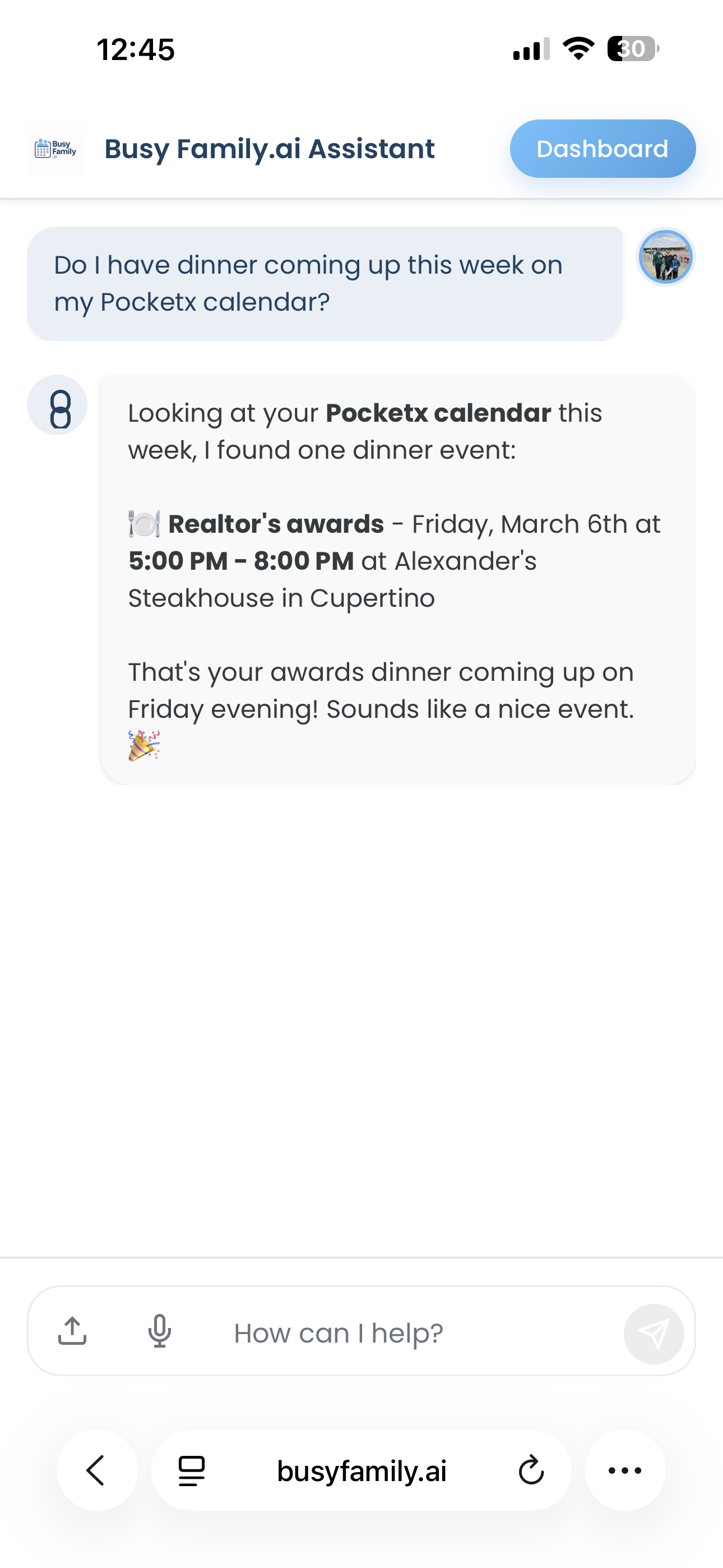
Once your accounts are connected and your calendars are toggled on, something becomes possible that most calendar apps never offer: you can talk to your assistant about specific calendars, by name.
Not just "What's on my calendar this week?" — but "What do I have on my work calendar Thursday?" Or "Is there anything on Jamie's school calendar that conflicts with our trip?" Or "Add this to my personal calendar, not my work one."
Your assistant knows which calendars you have, what they're called, and which Google account each one belongs to. That context travels with every question you ask. So when you're juggling a work offsite on one account and a kid's recital on another, you don't have to mentally translate between accounts. You just ask — using the same names you already use when you think about your schedule.
Scheduling works the same way. If you want an event to land in the right place, tell your assistant where it goes. "Put a reminder on my work calendar" and "add this to our family calendar" are both things it understands. No more accidentally cluttering your work account with personal plans, or wondering later which calendar something ended up on.
This is what multi-account support actually unlocks — not just a longer list of events, but a smarter assistant that can reason across your whole life and still respect the structure you've already built.
A Complete View of Your Life
We're not done building. But this is an important part of what we're working toward: a Busy Family assistant that actually knows what's going on — across every account, every calendar, every person in your family.
Life doesn't sort itself neatly into one Google account. It spills over, overlaps, and shows up in unexpected places. We think your assistant should be able to keep up with all of it.
Connect your other accounts today. Turn on Assisted for the calendars that matter. And the next time you ask "What does this week look like?" — you'll actually get the full answer.